
How to Use the Code Element Widget in Elementor
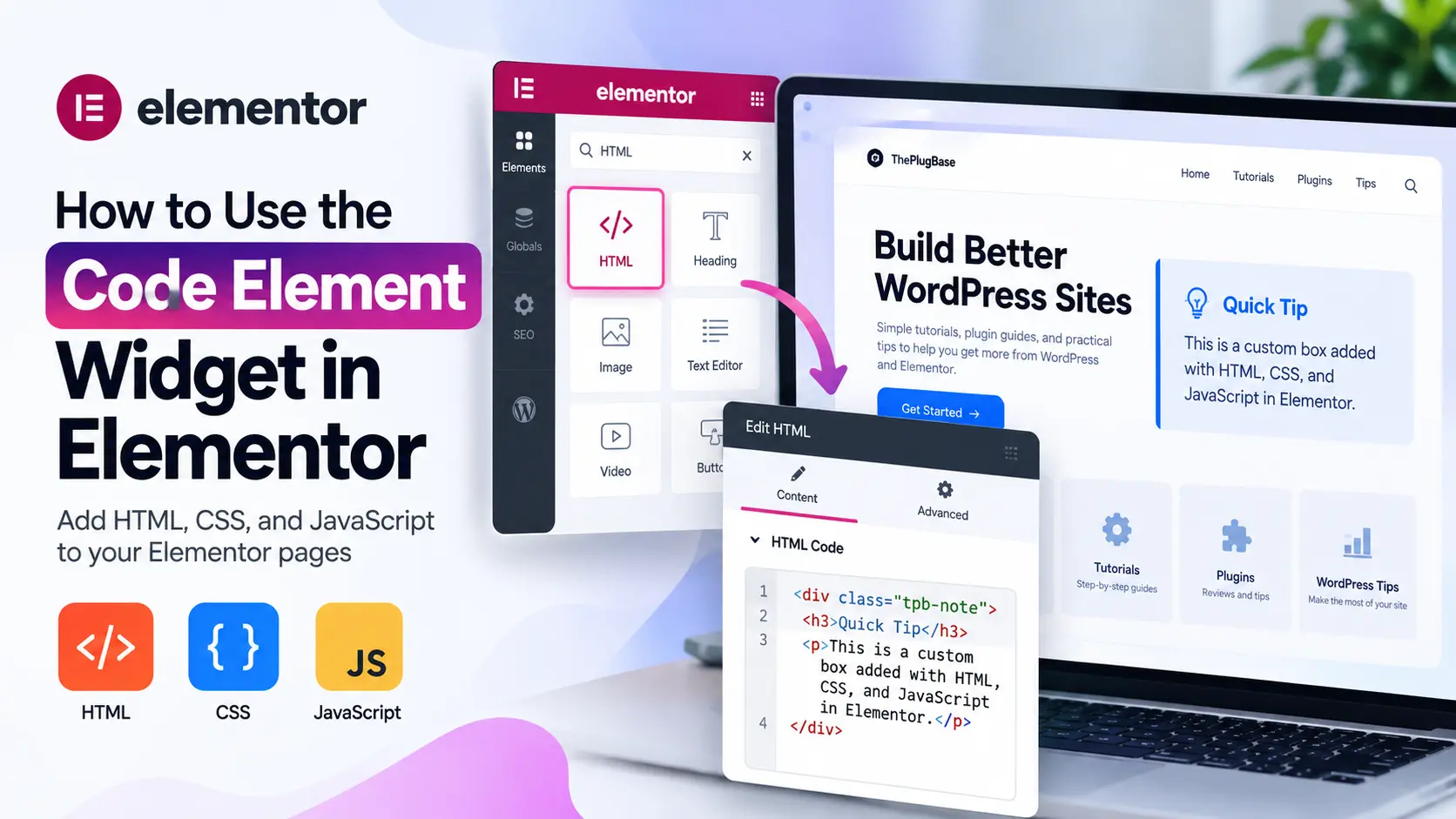
Need to drop a small piece of code onto an Elementor page? Maybe it’s a snippet from a third-party tool, a custom-styled box, or a few lines of CSS. You shouldn’t have to rebuild the page or edit theme files for that.
If you’re looking for the “Code Element” in Elementor, you probably want the HTML widget. It’s the widget where you paste HTML, CSS, and JavaScript so it runs on your page. If you want to show code to readers instead of running it, you want the Code Highlight widget, which is part of Elementor Pro.
This guide explains how to use the code element widget in Elementor step by step: where to find it, where each type of code goes, how to test it, and how to fix it when it misbehaves.
What Is the Code Element Widget in Elementor?
Short answer: “Code element widget” is a common way people describe the Elementor tools for adding custom code to a page. In the editor, the tools are labeled differently:
| What people search for | What it’s called in Elementor | What it does |
|---|---|---|
| Code element / code widget | HTML widget | Renders HTML you type or paste, including <style> and <script> blocks |
| Code display | Code Highlight widget (Elementor Pro) | Shows code as formatted, readable text. It doesn’t run it |
| Site-wide code | Custom Code (Elementor Pro) | Adds code to locations like the head or body across your site |
The distinction matters. Code pasted into a display widget won’t run. Code pasted into a widget that runs it will run, sometimes with side effects.
Availability and labels can vary by Elementor version and by whether you use Elementor Pro, so check your own editor if a name looks different.
What Can You Use the Code Element Widget For?
- Embedding a small third-party snippet, such as a booking form or a tracking pixel
- Adding a custom-styled block (a callout, badge, or notice) with HTML and CSS
- Writing a short script for simple behavior, like showing or hiding text
- Showing code examples to readers (Code Highlight)
- Testing a layout idea before moving it somewhere permanent
It suits small, local additions. It’s a poor fit for large scripts, site-wide changes, or anything you’ll need to maintain across dozens of pages.
HTML, CSS, and JavaScript: What Each One Does
If you’re new to code, this is the quickest way to keep the three straight:
| Code | What it controls | Example |
|---|---|---|
| HTML | Structure and content | A heading, a paragraph, a button |
| CSS | Appearance and layout | Colors, spacing, borders, fonts |
| JavaScript | Interaction and behavior | Showing text when a button is clicked |
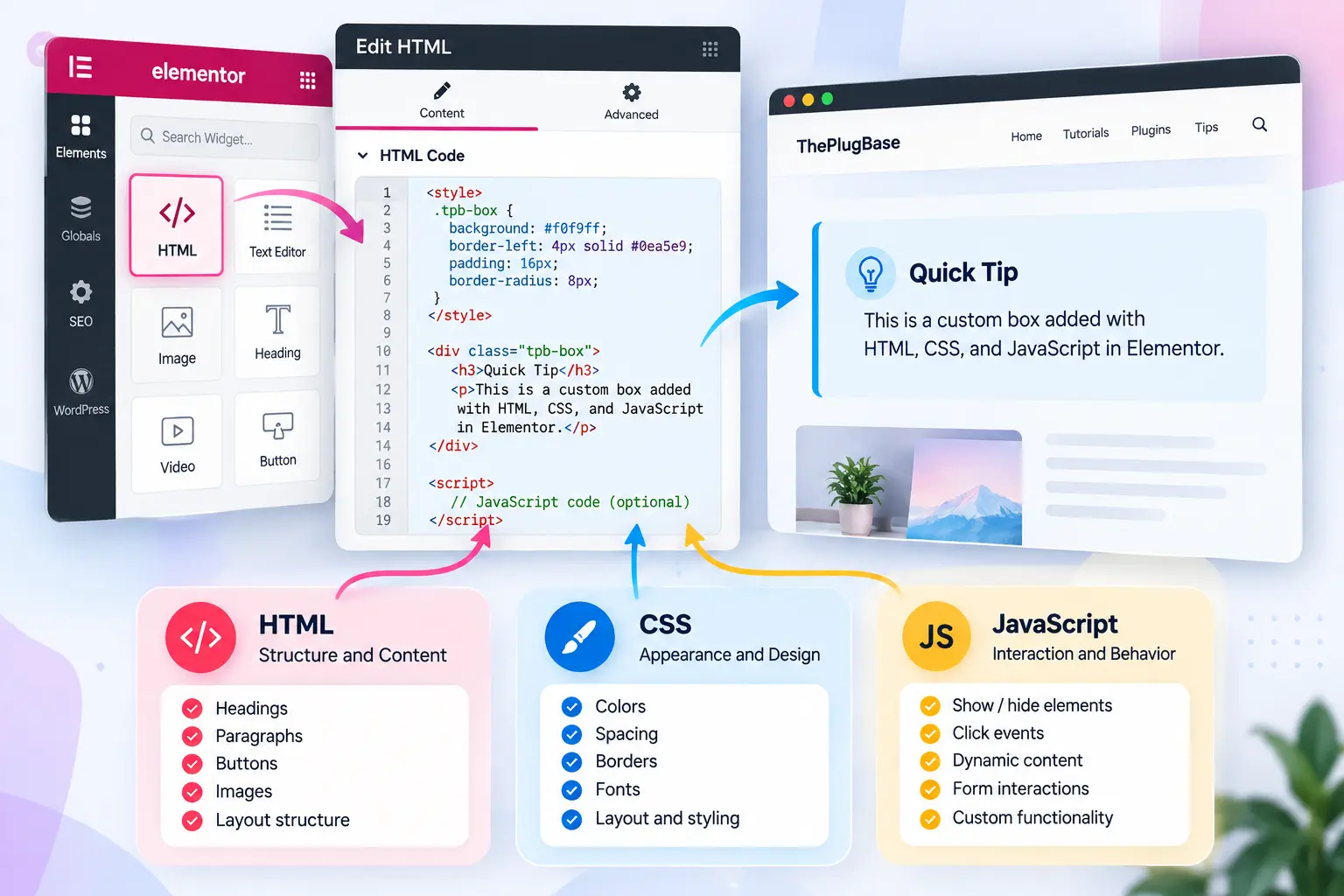 Most small snippets use HTML alone or HTML plus CSS. Add JavaScript only when the page needs to do something.
How to Use the Code Element Widget in Elementor: Step by Step
Open the Elementor Editor
Go to Pages in your WordPress dashboard, hover over the page you want, and click Edit with Elementor.
Find the Code Element Widget
In the left-hand panel, type HTML into the search box. The HTML widget will appear. For displaying code with Elementor Pro, search Code Highlight instead.
Drag the Widget Into Your Layout
Drop the widget into a section, container, or column. The code renders where the widget sits, so place it near the content it belongs to.
Add Your Code
With the widget selected, paste or type your code into the text area in the settings panel.
- Paste from a plain-text editor, not a word processor. Curly quotes (“ ”) break code.
- Add one piece at a time. If something breaks, you’ll know which piece caused it.
Preview the Result
Elementor shows the widget’s output in the editor, but it isn’t always identical to the live page. Use Elementor’s preview option (in many versions, an eye icon at the bottom of the panel), then save and view the published page in a separate browser tab.
How to Use HTML in the Code Element Widget
HTML is the simplest thing to put in the widget:
<div class="tpb-note">
  <strong>Heads up:</strong> This page is updated monthly.
</div>
You’ll see a plain block of text. It isn’t styled yet because there’s no CSS attached to it.
How to Add CSS to an Elementor Page
Option 1: A <style> tag inside the widget. Good for styles that belong to one snippet.
<style>
  .tpb-note {
    background: #f4f8ff;
    border-left: 4px solid #2f6fed;
    padding: 12px 16px;
    border-radius: 4px;
  }
</style>
Option 2: Elementor’s own styling controls. Many widgets have Style and Advanced tabs. A custom CSS field may require Elementor Pro, and availability varies by version.
Option 3: A site-wide setting, such as the WordPress Customizer’s Additional CSS. Better when the styles apply to many pages.
Give your custom classes a unique prefix (like tpb-) so they don’t collide with your theme’s or a plugin’s styles.
How to Use JavaScript Carefully
JavaScript is where things can go wrong fastest.
- Only paste scripts you understand or that come from a source you trust.
- Make sure the script runs after the page elements exist.
- Use unique IDs so it doesn’t grab the wrong element.
- Avoid code that loads unknown files or collects visitor data unless you know exactly what it does.
Scripts can behave differently in the editor than on the live page, so always test on the front end.
A Simple Code Example
This builds a small note box with a button that shows or hides extra detail.
Where to put it: Add an HTML widget and paste the whole block into it.
<style>
  .tpb-box {
    background: #f4f8ff;
    border-left: 4px solid #2f6fed;
    padding: 14px 18px;
    border-radius: 4px;
    max-width: 600px;
  }
  .tpb-box button {
    margin-top: 8px;
    cursor: pointer;
  }
  #tpb-extra {
    display: none;
    margin-top: 10px;
  }
</style>

<div class="tpb-box">
  <strong>Quick tip:</strong> Always test on the live page.
  <br>
  <button id="tpb-toggle" type="button">Show more</button>
  <p id="tpb-extra">Preview mode and the published page can behave differently.</p>
</div>

<script>
  document.addEventListener("DOMContentLoaded", function () {
    var button = document.getElementById("tpb-toggle");
    var extra = document.getElementById("tpb-extra");

    button.addEventListener("click", function () {
      var isHidden = extra.style.display === "none" || extra.style.display === "";
      extra.style.display = isHidden ? "block" : "none";
      button.textContent = isHidden ? "Show less" : "Show more";
    });
  });
</script>
What each part does:
- The
<style>block styles the box, hides the extra paragraph by default, and gives the button a pointer cursor. - The
<div class="tpb-box">holds the visible content: a tip, a button, and a hidden paragraph. - The
idvalues (tpb-toggle,tpb-extra) let the script find those exact elements. - The script waits for the page to load, listens for a click, and toggles the paragraph. It also changes the button label.
If you only need the styled box, delete the button, the paragraph, and the script.
How to Test Your Code
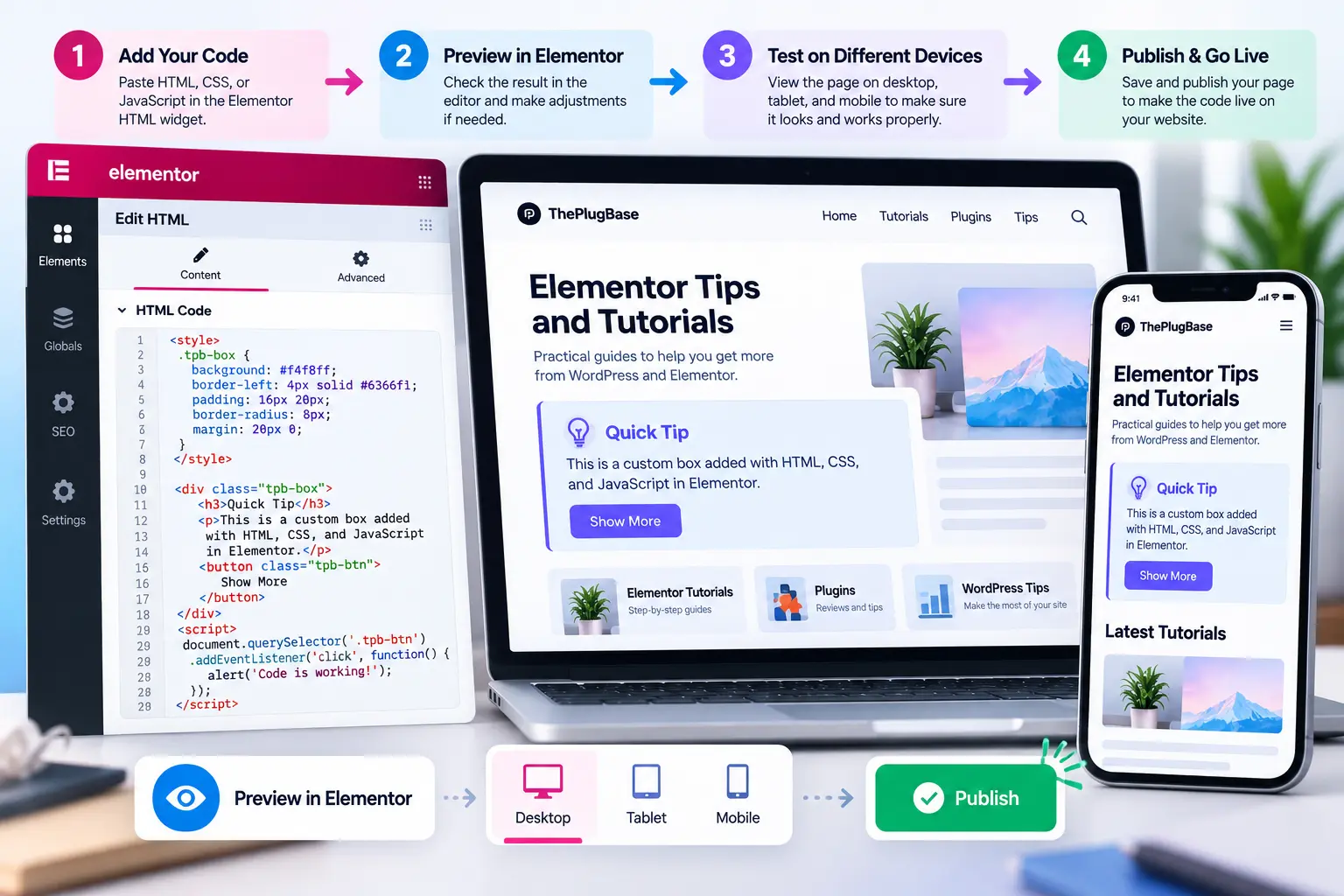
- Save or update the page.
- Open the live page in a new tab or private window.
- Check that the snippet appears where you expect.
- Click any buttons or links it contains.
- Resize the browser, or use your browser’s device view, to check mobile layout.
- Open the developer console (usually F12) and look for red error messages.
- Clear your site or CDN cache if nothing has changed.
Common Problems With Elementor Code
The Code Appears as Text
It’s probably in a widget that displays text, such as a Text Editor widget. Move it to the HTML widget. Also check for stray characters or missing angle brackets.
The Code Does Not Render
Look for unclosed tags, missing quotes, or curly quotes from pasting. Paste into a plain-text editor first, then into the widget. If nothing shows, remove half the code and add it back in pieces to find the culprit.
CSS Is Not Applying
- A typo in the class name (
.tpb-notevs.tpb_note) - A theme or Elementor style overriding yours
- A
<style>block missing its closing tag - Cached CSS on the live site
Right-click the element, choose Inspect, and see which styles are winning.
JavaScript Is Not Running
Read the console error. Frequent causes: an ID that doesn’t match, a script running before the element exists, or a conflict with another script. Also confirm the script appears in the page source.
The Layout Looks Broken
Unclosed tags often bleed into the surrounding layout. Check that every <div> has a matching </div>, and that the widget sits in the intended container or column.
The Code Works in Preview but Not on the Live Page
Possible reasons: caching, an optimization plugin delaying or combining scripts, or a dependency that only loads in the editor. Clear caches and temporarily disable script optimization to see if the behavior changes.
Code Element Widget vs Other Ways to Add Code in WordPress
| Method | Best for | Watch out for |
|---|---|---|
| HTML widget | Small snippets on one page | Hard to manage if repeated across many pages |
| Code Highlight widget (Pro) | Showing code to readers | Displays code; doesn’t run it |
| Custom Code (Pro) | Site-wide or location-specific code | Pro feature; availability varies by version |
| Shortcode widget | Output from a plugin that provides a shortcode | Needs a plugin that supports it |
| Code snippets plugin | PHP or reusable logic | Choose a well-maintained plugin |
| Child theme files | Permanent, site-wide changes | Requires file editing and care |
If the same snippet needs to appear on many pages, use a template or a site-wide method instead of pasting it repeatedly. [INTERNAL LINK: Elementor templates guide]
Tips for Cleaner and Safer Code
- Keep it small. One purpose per widget.
- Use prefixed class names, like
tpb-. - Add short comments so you remember what the code is for.
- Keep a copy of working code in a separate file.
- Back up your site before adding anything unfamiliar. [INTERNAL LINK: WordPress backup guide]
- Trust the source. A third-party script can load other scripts and act with the page’s permissions.
- Don’t paste code you can’t explain.
- Use a staging site for anything large or risky.
Does Custom Code Affect SEO or Page Speed?
It can, but small snippets usually have little effect. It depends on what the code does.
- Extra scripts, especially ones loading files from other sites, can slow rendering.
- Elements that pop in after load can shift the layout and hurt the reading experience.
- Search engines can process JavaScript, but content written directly in HTML is the simplest and most dependable choice. For text you want to rank, keep it in normal page content rather than generating it with a script.
- Unused code is dead weight. Delete what you’re not using.
Test with a speed tool before and after adding heavier scripts, and judge by real results. [INTERNAL LINK: Elementor page speed tips]
When Should You Use the Code Element Widget?
Use it for a quick, page-specific addition: an embed, a small custom block, or a short experiment. Choose something else when the change is site-wide, when a plugin already does the job, or when a native Elementor widget can produce the same result through settings. Native widgets are easier to edit later and easier for other people to understand.
FAQ
Is there really a “Code Element” widget in Elementor?\  Not under that name. People usually mean the HTML widget, or the Code Highlight widget in Elementor Pro.
Can I add JavaScript with the HTML widget?\  Yes, with <script> tags. Test on the live page, because the editor may behave differently.
Do I need Elementor Pro to add custom code?\  The HTML widget is generally available in the free version. Code Highlight and Custom Code require Pro. Check your version.
Why is my code showing as text?\  It’s likely in a text-based widget, or the HTML has errors. Move it to the HTML widget and check for broken tags.
Where should CSS go?\  Page-specific CSS can go in a <style> tag in the widget or in an Elementor style field. Site-wide CSS belongs in a site-wide setting.
Can custom code slow down my site?\  Yes, especially large scripts or ones loaded from external sources. Small HTML and CSS snippets rarely matter.
Is it safe to paste code from the internet?\  Only if you understand it and trust the source. Back up or test on staging first.
Final Thoughts
The HTML widget is a practical way to add small pieces of custom code to an Elementor page without touching theme files. Keep snippets short, name things clearly, test on the live page, and switch methods when the change needs to reach the whole site.

